Writing by shivdev on Wednesday, 27 of April , 2011 at 9:31 pm
Folks, look no further. java.util.UUID works great. I’ve tried the Axis’s UUIDGenFactory and and was NOT unique. 10 reps of 40 threads pounding simultaneously. At least, two or three of the forty were duplicates every time (only thirty seven were unique) Geeze!!! And I thought it was the synchronization.
java.util.UUID.randomUUID().toString(); // This works
Moreover, it uses SecureRandom number generator algorithms – so it is secure (in terms of predicting the next UUID etc.).
Category: Java
Writing by shivdev on Wednesday, 20 of April , 2011 at 9:30 pm
As a developer I’m constantly restarting processes. For instance, if I have 2 Java Process (Server/Web) and an Eclipse Java Process which makes 3 Java Processes. The problem is to kill only the server and web processes and leave the eclipse java process intact.
Solution 1 (The Hard and Manual approach):
Find the java processes and kill them manually
ps -ef | grep java
kill -9 1
kill -9 2
Solution 2 (The Simplified Approach – killjava):
Create an alias or run the following:
ps -A|grep java|sed -e “s/\s*\([0-9]*\).*/\1/”|xargs kill -9
This will kill all java processes – which means you will need to restart eclipse each time you run this.
Solution 3 (The Tuned Approach – killweb):
Create an alias or run the following based on a keyword (say, Web process remote_debug port 4096):
ps -A|grep java|sed -e “s/\s*\([0-9]*\).*/\1/” | xargs ps -p | grep 4096 | sed -e “s/\s*\([0-9]*\).*/\1/” | xargs kill -9
Create an alias or run the following based on a keyword (say, Server process remote_debug port 2048):
ps -A|grep java|sed -e “s/\s*\([0-9]*\).*/\1/” | xargs ps -p | grep 2048 | sed -e “s/\s*\([0-9]*\).*/\1/” | xargs kill -9
This will kill only the specific processes you want to terminate.
Solution 4 (The BEST Way – Combine 1 and 2 in a single alias – killdebug):
Create an alias or run the following (Use egrep to look for multiple keywords above):
ps -A|grep java|sed -e “s/\s*\([0-9]*\).*/\1/” | xargs ps -p | egrep “2048|4096” | sed -e “s/\s*\([0-9]*\).*/\1/” | xargs kill -9
This will kill all processes you WISH to terminate.
I have aliases for Solutions 2, 3 and 4 depending on what I’m trying to do. So there you go – hope that helps!
Category: Linux,Tips and Tricks
Writing by shivdev on Thursday, 17 of March , 2011 at 6:41 pm
The Schengen Visa allows travel to the following 25 countries that are part of the Schengen Agreement (As of now: Austria, Belgium, Czech Republic, Denmark, Estonia, Finland, France, Germany, Greece, Hungary, Iceland, Italy, Latvia, Lithuania, Luxembourg, Malta, Netherlands, Norway, Poland, Portugal, Slovak Republic, Slovenia, Spain, Sweden and Switzerland)
I recently needed to apply for the Schengen Visa in person since I was traveling to France, the Netherlands and Switzerland (in that order) with most of my travel time in Switzerland. It’s a simple process if you know what you’re doing but it can be a hassle. Hey, that’s what you get for not being a citizen of the “first world”.
But seriously, The Swiss Embassy has made it very easy to apply and provided all the necessary info on their Schengen Visa Information page. Moreover, unlike the French and some other Consulates No Appointments Necessary at least at the Swiss Embassy in SF as long as you show up between 9am and Noon.
The Best Part at the Swiss Embassy was that there were no lines. In fact, there was nobody at the Embassy except for me and the Lady behind the Visa Desk.
Here’s a list of things that were needed (when I was applying):
- Passport, Green Card/Visa, Photos, Visa Application and Processing Fees — (Pretty Standard)
- Bank Statements With Sufficient Funds — (You’re taking a vacation – You better have the cash)
- Your Flight Itinerary — (Yes Really! even before you go for your appointment)
- Travel Arrangements: Hotel Reservations for Every Night and tickets within Europe — (Yes, Sir)
- Travel Insurance — (Holy, crap)
- Verification of Employment (Letter or pay stubs, etc.) — (Hmmm)
And Here’s a breakdown on the damage:
- Visa Application Fee that keeps going up ($77)
- FedEx charge to have them mail back my passport ($15)
- Travel Insurance for 11 days ($13)
- Passport Size Photos from Costco ($10)
- Parking in San Francisco ($8)
- Plus photo-copying/printing charges
The Hassle:
- Getting Travel Insurance. I bought it from InsuBuy.Com (found them after a google search)
- Getting the Employment Verification Letter. Depending on your company it may be easy.
- Driving to and from San Francisco and finding parking there.
- Photocopying all your documents.
When I submitted the application, they told me that the Passport/Visa would arrive by FedEx a week later (and it arrived exactly on the day they said)
The only disappointment was that it was NOT valid for 3 months that is assumed. Rather, it was valid for just 2 weeks (which was 3 days more than the duration of my travel) and was valid for only one entry.
It served my purpose, but had they given me a year’s validity with multiple entries, I would have definitely made another trip and wouldn’t that have helped their businesses and tourism industry?
That’s all folks! It’s not too hard getting the Schengen Visa so don’t fret!
Category: Travel
Writing by shivdev on Thursday, 10 of March , 2011 at 5:51 pm
Here’s the syntax:
mysql -u user -p password database -e ‘SQL Query’
Here are a few examples:
mysql -u root -p mypass world -e ‘select * from city;’
mysql -u root -p mypass world -e ‘desc city;’
Category: SQL DB
Writing by shivdev on Tuesday, 15 of February , 2011 at 9:48 pm
Sometimes you might want to create some JavaDoc for some APIs (as a one-off) say for a customer (Doc Team etc.). Simply use the javadoc command line option. Use the -d option to specify the destination for generated HTML content.
~/java/jdk1.6.0_20/bin/javadoc ./src/java/com/domain/api/MyService.java -d ~/tmp/javadoc
Alternatively, from within Eclipse – you can start the JavaDoc wizard and select the class you want generate the JavaDoc for.
File => Export => Java => JavaDoc => Select The Class, Desitination and hit Finish
Category: Eclipse,Java
Writing by shivdev on Sunday, 13 of February , 2011 at 10:16 am
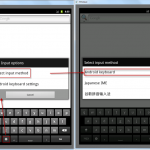
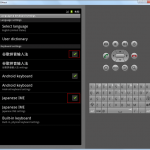
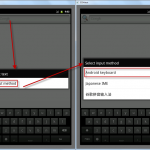
I’m not sure what caused it, but you can change this behavior in at least 3 ways:
- Select Input Options button on the bottom left of Keyboard ==> Input Method ==> Android Keyboard
- Menu ==> Language & Keyboard ==> Keyboard Settings ==> Uncheck the Chinese & Japanese IME Checkboxes
- Long Press a Text Field ==> Input Method ==> Android Keyboard
See the snapshots for details.
Category: Android,Tips and Tricks